' href='data:image/webp;base64,UklGRroBAABXRUJQVlA4IK4BAABwBwCdASogACAAPrVOn0snJCKhsBgIAOAWiUAVIp/zAH0DXR4AaQJmtKa5FoQ8GCikXCGH0OKNoGYLmhAWkxEHCoIFQAD+/jXf0tE/7hjnvZv54X+Teg+BJEPTjDZgwpAg+7JIOuf4059ob0SeEk047AreZ2TF8Umng9rv3A5lLX+sXpIrGkTVMk4K9oJS8d/fig8c3xm3kR0svE9sbGTr9U0rZsVwl9fBritSX3rG3uuQW0kZZmVUbZUvv9B2JVpM/rv3u/evjbXe2/WnZmWfv+ZvWCW/lnB3vidlMhdyNtZxZjJkEmXz4cPJndR/ViskinObV03MYla5e1sGjC9hZVNqCfSR3mPC37S7wvdbVBfNFNJoccklUo13A36LdJSB2vtY4NnU9Gnsrf4R8w2YtvyLXPgNwcvRmQcWk/olhpND2wwJeaUXoEfmaoW29ftlA2Tv4YldPURThpiB3VLp+CrmcZBJpGUuvsdTzOlX1xDz2aNR5+8wHQWHXwRjqdK2qOrD5rNCfF+uMRJpAtee48u9VYh48/66QrszYYSE30dIpncdhr12Az2KgmgA'/%3E%3C/svg%3E)

Tips and Tricks: Make Filters Look More Natural
Some of the features are currently not available for Android users.
Table of Contents
Why portraits can become too bright
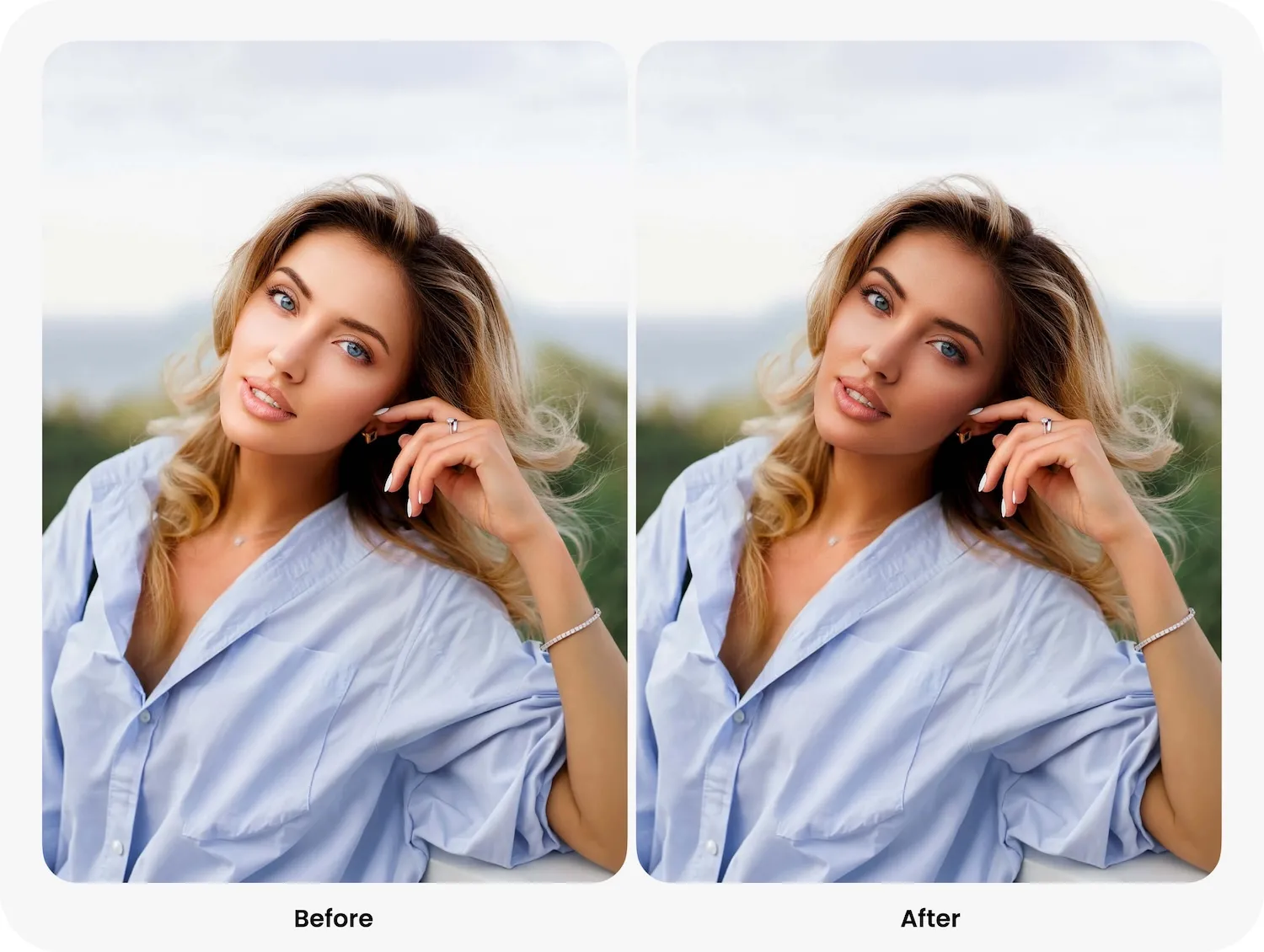
When you combine several Face Filters, especially from the Impression collection, the final result can sometimes become brighter than intended. The effect is subtle, but the face may look flatter or more illuminated than the rest of the photo.
Fortunately, you can correct this in less than a minute without removing any of your favorite filters.
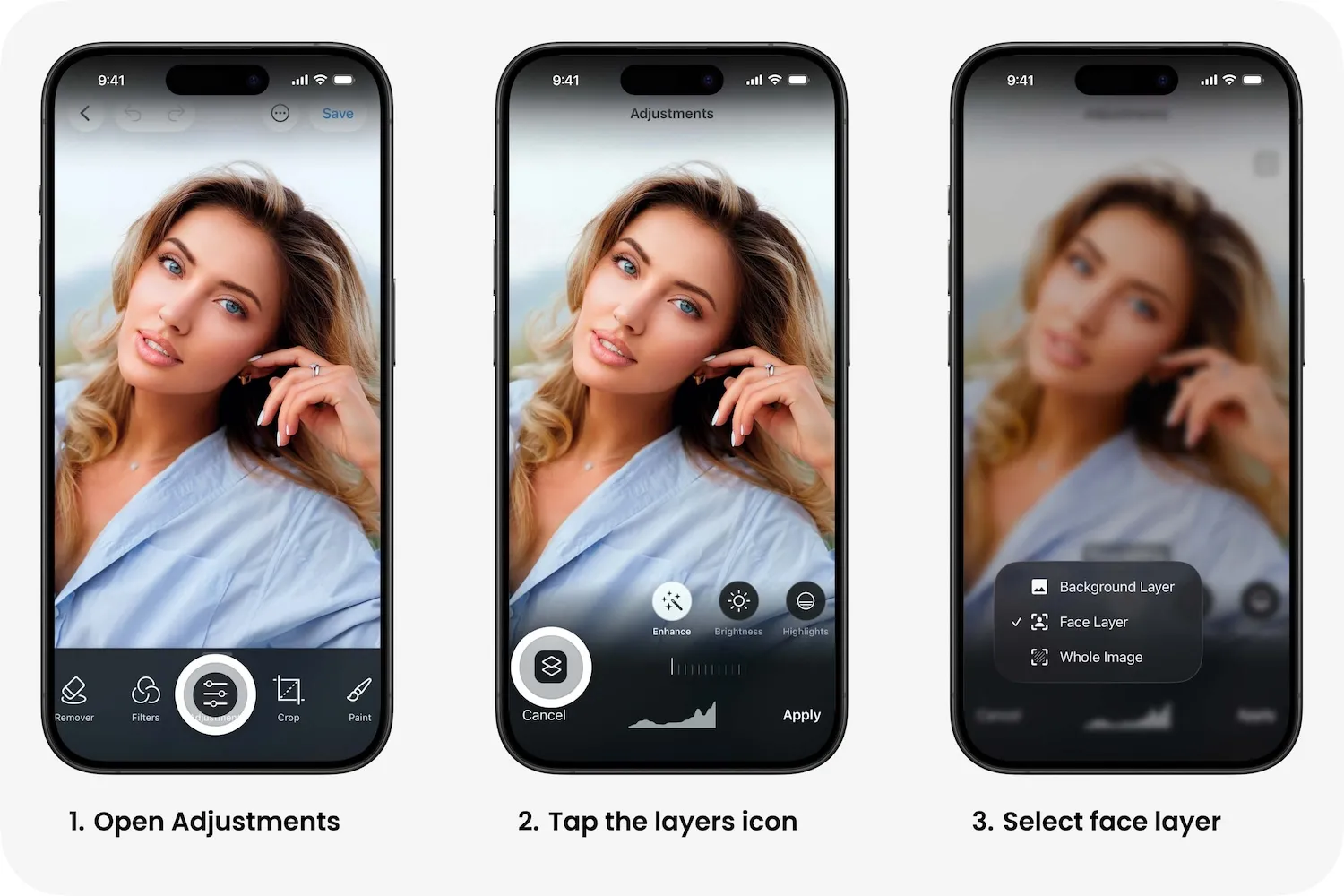
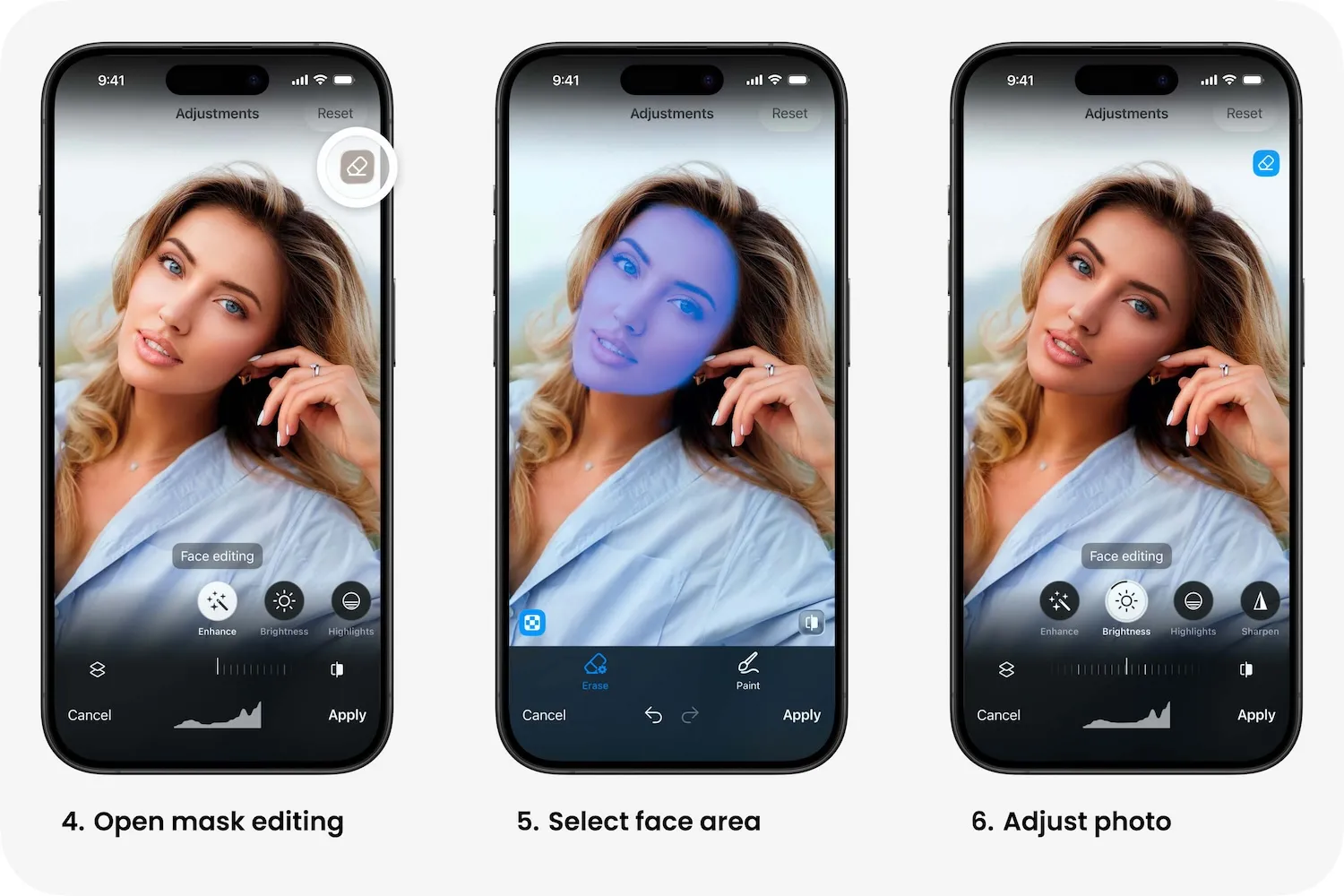
A quick fix in Adjustments
- Open Adjustments.
- Select the Face layer.
- Use the Eraser to make sure the mask only covers the face.
- Lower Highlights.
- Reduce Shadows slightly.
- Optionally decrease Saturation a little.