
' href='data:image/webp;base64,UklGRpYBAABXRUJQVlA4IIoBAABQCACdASogACAAPq1GnEmmI6KhN/VYAMAViWQAnTLpPQTbjiU5NwAqkBwK4B1sYhwmLkn2b6Q460nz/SAEL07TBGYDum9yA28CxUAA/vhwIMUJdtPsh+s7V6a8pAoPd0671JYE5C4xNsPIa0q5JOOO2j/AIpLucMoz7lp3w4eB8nAN9kLaUsftn8PuoVt6csTa7vl3dVwXNjA714kU1Ec4uBHerhco1JbeTF4GuopYN1f+y/5aTLOg+WDjrM0nwgphOMOHbp4ALTyLZP7za2TA+wiucl2zktK7DRwNE/ovEqpYiCrQHrh5ho7IjJHjljZcLWEadqG2e4w0XLwnmv+frmmcF3FUxHG6rEgrezSt+8NAMC8mNZ68X2kox+wqckraUcuLDnfoT540E5If6jkoe0kCDBYmjdtj3qrwDrZkJQwgjnJ1IKCBKxh5oUSTSZUP3O2bezbytCOi2jyfnpg2P3Vhqgh20RB1DmSeuax4m3TzFc668ZJ5rMYFyfxHpCnflJI9AtIA3gAA'/%3E%3C/svg%3E)

Photobombers, Begone: Remove Unwanted Objects With FaceApp
Strangers, clutter, rogue coffee cups: learn how to remove unwanted objects from photos using FaceApp’s Remover tool.
Table of Contents
- What Is the Remover Tool
- How People Are Using FaceApp’s Remover
- How to Remove an Object from a Photo
- FAQs
Some Things Are Better Left Out of the Picture or How to Make People Disappear (Without Raising Suspicion)
Humanity has survived its fair share of plagues. You probably know their names from history class, and even though Halloween has come and gone, we’d rather not mention them for fear of summoning one back. Yet here we are, in the 21st century, dealing with a particularly persistent modern affliction: photobombing.
Granted, the mortality rate is considerably lower, but the emotional damage of discovering a stranger’s entire face hovering over your shoulder in the best photo you’ve taken all year is really difficult to quantify.
Now, we’re not claiming to be humanity’s saviors, as that feels a little ambitious for a photo-editing app, even if we are the best photo-editing app. But our Remover tool is the best cure there is for intentional photobombers, accidental background and star appearances, plus all those things that have absolutely no business being in your pictures.
Even though it was years ago, we all still remember the infamous Starbucks cup that somehow made it into a Game of Thrones scene. The people of Westeros could have avoided a minor international incident with FaceApp’s Remover tool.
Not to toot our own horn, but the tool’s possibilities extend well beyond rogue coffee cups and tourists with impeccable timing. We’re especially good at removing bathroom-counter clutter, stray cables, and exes. Of course, we’d love to proclaim that our Remover tool could erase every regrettable decision you’ve ever made, but our legal team said no can do; don’t ever write that. For now, we’ll stick to photographic evidence. And as it turns out, there’s quite a lot we can do with that.
Here’s how to make things disappear without leaving a trace.
What Is the Remover Tool and How to Get the Most Out of It?
We learned that for SEO purposes, in this section we need to have a question followed by an answer, so here’s our definition: Remover is a photo-editing tool that lets you get rid of unwanted people, objects, and visual distractions without having to crop half your picture or spend hours learning Photoshop. You simply brush over whatever you’d like gone, and the technology gets to work.
However (see, we used no buts here), it’s easier said than done. Removing an object is only half the job, seeing as if you erase a stranger standing in front of a brick wall, you’re left with a stranger-shaped hole where several perfectly good bricks used to be.
FaceApp tackles this by analyzing the surrounding area and reconstructing the missing background. It considers nearby textures, patterns, colors, and lighting to create a replacement that blends into the original photograph.
In other words, it all looks as good as it did in your head before you took the photo, with no weird background patterns or distorted backdrop.
The possibilities are surprisingly extensive. Remover can clear distracting objects from travel photos and make it look like the Eiffel Tower was reserved exclusively for you, tidy up cluttered portrait backgrounds, eliminate unexpected photobombers, and handle smaller nuisances like flyaway hairs or an inconveniently protruding ear.
And as you will see below, these aren’t necessarily features people appreciate only in theory. In an App Store review, a FaceApp user said they were impressed by the removal feature and were disappointed enough to speak up when it temporarily disappeared from the app. The reviewer later updated their feedback when the feature returned. While they didn’t specify what they used it for specifically, their reaction says something about how useful a good editing tool can become once you’ve worked it into your routine.

How People Are Using FaceApp’s Remover
If you’re wondering just how far people are willing to go to rescue a good photo, the internet has some answers, and they’re delightfully specific.
While doing our homework for this article, we went quite down the rabbit hole researching how people use FaceApp’s Remover tool, and emerged with stories we simply couldn’t keep to ourselves. Like the curious case of a toilet-paper holder ruining an otherwise fabulous selfie in one of New York’s fanciest bathrooms, strangers who insist on making star appearances in other people’s vacation portraits, and parking signs auditioning for starring roles in professional headshots. Apparently, no object is too mundane to deserve a digital eviction notice. We’ll let you know where and when you can read all about these stories in depth.
How to Remove an Object from a Photo
Ready to make something disappear? Here’s how to do it:
- Open FaceApp and choose the photo you’d like to clean up.
- Find Remover in the editing tools.
- Use your finger to brush over the object (or person) you’d rather wasn’t there. Make sure you cover the edges, too.
- Give FaceApp a moment to work out what belongs in the newly vacated space.
- Happy with the result? Tap Apply, and consider the evidence successfully erased.
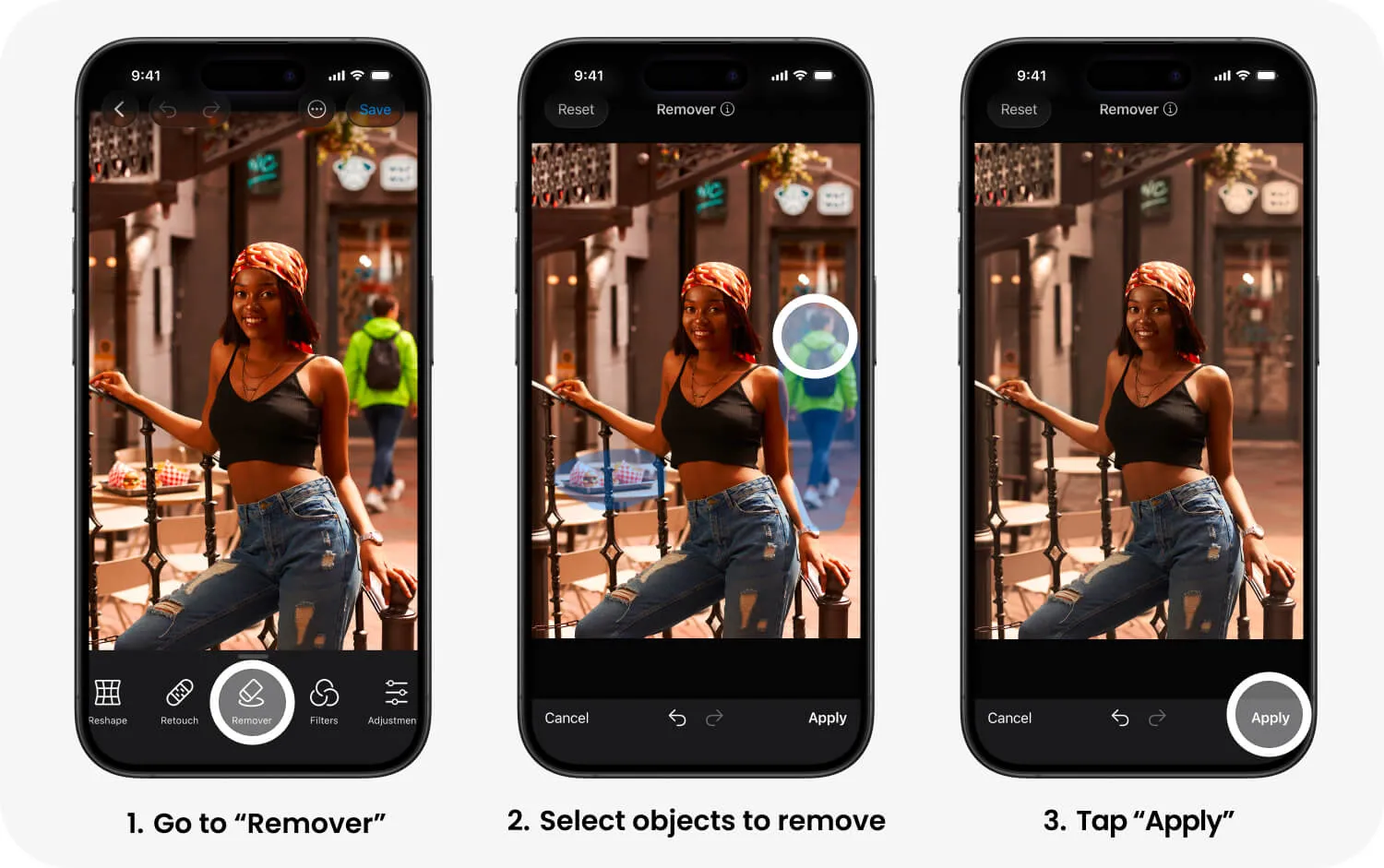
Changed your mind halfway through? Undo takes you back a step, while Redo brings your last edit back. If things have gone completely sideways, Reset gives you a fresh start. You can also use the comparison button to see the before and after, which is particularly satisfying when you’ve just removed an entire photobomber.
And if your photo has several unwelcome guests, resist the temptation to erase them all in one dramatic swipe. Tackle them individually. Giving FaceApp a little more of the surrounding background to work with can make a noticeable difference to the final result.